










Press and hold the headset power button for 2 seconds to open the Headset Power menu. Using either hand controller, aim at Power Options and press the trigger to select it. Then select Restart.
After restarting or powering on the headset, you’ll see a Welcome Back message with two options: Continue or End Session.
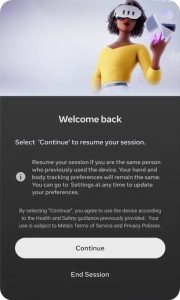
Welcome Back Message
Always select Continue to enter the Mynd Home screen. To do this, aim either controller at Continue and press the trigger on the back of the controller.
If you accidentally select End Session, the headset will restart and display a series of setup steps. Simply follow the on-screen instructions until you return to the Mynd Home screen:
1. Trigger Instruction Screen - Aim either controller at the arrow button and press the trigger on the back of the controller to select it.
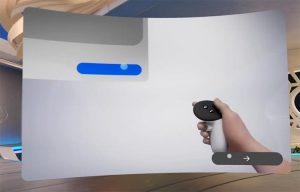
Trigger Instruction Screen
2. Start Session Screen - Aim either controller at the Start Session button and press the trigger on the back of the controller to select it.

Start Session Screen
3. Setup Complete Screen - Press the Meta button on the right-hand controller and you will be taken to the Mynd Home screen.
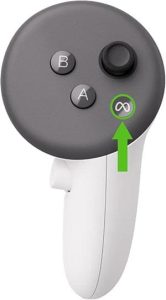
Right-hand Controller - Meta Button

Setup Complete Screen
Each hand controller is powered by a single AA battery. To replace it:
- Locate the battery release button on the controller (shown in the image).
- Press the button and slide the battery cover open.
- Remove the old AA battery.
- Insert a new AA battery, matching the + and – symbols to the diagram inside the compartment.
- Slide the cover back on until it clicks securely into place.
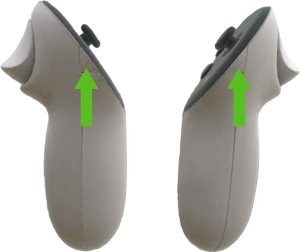
There are a few ways you can improve the visual clarity of the headset display:
- Adjust lens spacing: The headset has 3 lens positions. Gently grasp one lens and slide it left or right until it clicks. Try each position to find the clearest view.
- Adjust the headset angle: Tilt the headset slightly up or down on the face. Small movements can make a big difference.
- Check the fit: Make sure the headset is positioned correctly using the head strap adjustments (see Adjusting the Fit).
- Clean the lenses: Use a dry microfiber cloth to gently wipe the lenses. Do not use liquid cleaners.